How to Resize Images Without Losing Quality (Batch Processing Guide)
Resizing images at scale without quality loss requires the right algorithms and workflow.
Why Resizing Often Destroys Image Quality
When you resize an image, the software must recreate pixel data through a process called interpolation. Every time pixels are added or removed, the algorithm estimates new color values based on neighboring pixels. The quality of this estimation determines whether your image stays sharp or becomes blurred and pixelated.
There are four common interpolation methods, and choosing the wrong one is the primary reason resized images look bad:
- Nearest Neighbor duplicates or removes pixels without averaging. Fast, but produces jagged stair-step artifacts on curves. Only suitable for pixel art and diagrams.
- Bilinear averages the four nearest pixels. Smooth but can appear soft. Good for quick previews where speed matters more than quality.
- Bicubic considers sixteen surrounding pixels. Sharper than bilinear and the standard choice for general photo resizing.
- Lanczos uses a windowed sinc function for the highest quality downsampling. Preserves fine details better than bicubic.
| Algorithm | Quality | Speed | Best Use Case |
|---|---|---|---|
| Nearest Neighbor | Low | Fastest | Pixel art, icons, diagrams |
| Bilinear | Medium | Fast | Quick previews, thumbnails |
| Bicubic | High | Moderate | General photo resizing |
| Lanczos | Highest | Slow | Professional print and web |
Our image resizing tool defaults to Lanczos interpolation to give you the best quality automatically, while still offering all four options for users who need faster processing.
Understanding Resolution vs. File Size
A common misconception is that resolution and file size are the same thing. Resolution is the pixel dimensions of your image. File size is how much storage the image consumes on disk, which depends on compression, color depth, and format.
You can have a 4000 x 3000 pixel image that is only 1 MB (highly compressed JPEG) and an 800 x 600 image that is 3 MB (uncompressed TIFF). The table below shows how format choices affect file size at the same resolution:
| Format | Dimensions | Quality Setting | File Size |
|---|---|---|---|
| JPEG | 2000 x 1500 | 85% | 1.2 MB |
| PNG-24 | 2000 x 1500 | Lossless | 6.8 MB |
| WebP | 2000 x 1500 | 90% | 680 KB |
| AVIF | 2000 x 1500 | 90% | 520 KB |
Batch Processing with QuickBG
Processing images one at a time is tedious when you have a full catalog to update. Our batch resize feature handles hundreds of files in one operation with consistent settings.
Step-by-Step Batch Resize
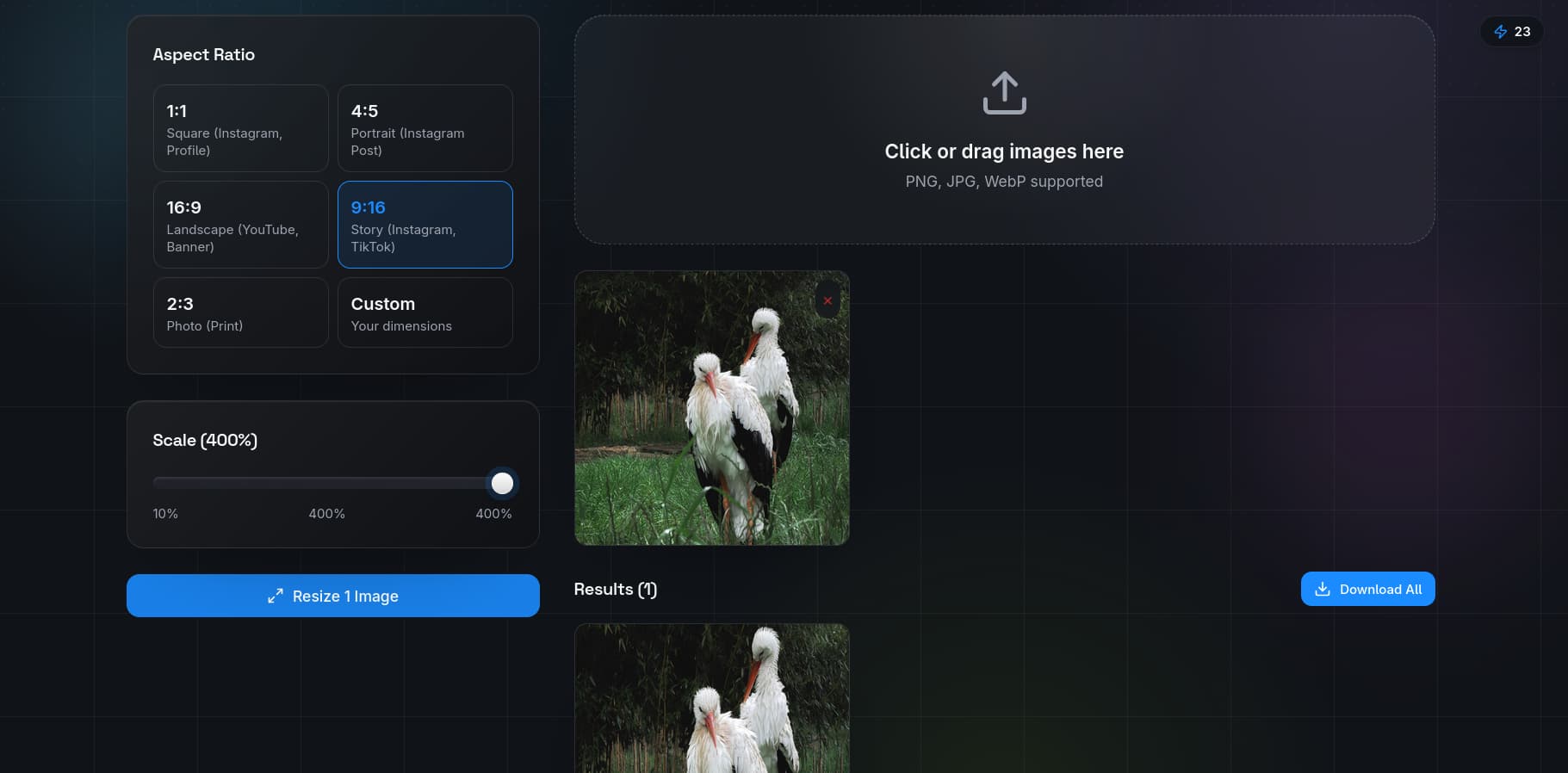
- Navigate to the resize tool page and select multiple images using the multi-file uploader.
- Choose your target dimensions. You can specify exact pixel values or use the percentage scale. Common presets like 1080 x 1080 and 1920 x 1080 are available.
- Select the interpolation algorithm. We recommend leaving the default Lanczos for maximum quality.
- Pick your output format. The format converter supports JPEG, PNG, WebP, and AVIF, so you can change formats during the resize process.
- Click Process All. QuickBG packages every result into a ZIP archive for easy downloading.
Best Practices for Batch Processing
- Always use original files. Resizing a previously compressed image compounds quality loss.
- Lock the aspect ratio unless you want intentional distortion.
- Apply sharpening after resizing, not before.
Comparison: QuickBG vs Desktop Software
| Tool | Interpolation Quality | Batch Support | Cost | Learning Curve |
|---|---|---|---|---|
| QuickBG | Lanczos (excellent) | Yes | Free | Minimal |
| Adobe Photoshop | Preserve Details 2.0 | Yes (actions) | Paid | Steep |
| GIMP | Bicubic / LoHalo | Via plugin | Free | Moderate |
| Basic editors | Bilinear | No | Free | Minimal |
Common Resizing Mistakes
Avoid these issues to maintain consistent quality:
- Re-compressing JPEGs multiple times. Each save loses detail. Save intermediate versions as PNG or TIFF.
- Enlarging small images. Upscaling a 200 x 200 image to 2000 x 2000 creates a blurry result no matter which algorithm you use.
- Ignoring output format. A WebP at 80% quality looks as good as a JPEG at 95% quality but takes half the file size.
For more tips, check our FAQ page or explore the full suite of image editing tools on QuickBG.