Creating Consistent Brand Imagery for Instagram and TikTok
Brand consistency across Instagram and TikTok is harder than it looks. Learn how to build reusable templates, colour palettes, and editing workflows.
Scrolling through Instagram and TikTok back to back reveals a harsh truth: most brands look like two different companies on each platform. The Instagram feed is polished and grid-aligned. The TikTok presence is raw and vertical. This disconnect confuses followers and weakens brand recall.
Why Brand Consistency Matters
Consistent imagery builds recognition. When someone sees your content out of context, they should instantly know it's yours. According to a 2025 Lucidpress study, consistent brand presentation across platforms increases revenue by up to 23%.
Building Your Core Visual System
Colour Palette
| Element | Hex Code | Usage |
|---|---|---|
| Primary | #2A6BFF | Headers, buttons, accents |
| Secondary | #1A1A2E | Backgrounds, text |
| Accent | #FF6B6B | CTAs, urgency highlights |
| Neutral | #F5F5F5 | Card backgrounds, dividers |
Export all graphics in sRGB colour space. Social platforms assume sRGB, and wide-gamut colours will look washed out.
Typography System
| Usage | Font | Weight | Size (px) |
|---|---|---|---|
| Headline | Inter | Bold (700) | 36-48 |
| Subheadline | Inter | Semi-Bold (600) | 20-28 |
| Body | Inter | Regular (400) | 14-18 |
Instagram: The Grid-First Approach
Use QuickBG's adjust tool to apply consistent brightness, contrast, and saturation across every photo before placing it into a template.
Instagram Story Templates
- Use 1080 x 1920 canvas with 120px safe margins
- Place logo in top-right corner at 80px width
- Keep text within centre 70% of the frame
Use background blur for Story backgrounds to add depth without distraction.
TikTok: Vertical and Fast
TikTok's full-screen vertical format demands a different approach. Your imagery needs to work at 9:16 with minimal text.
Reusing Assets Across Platforms
- Design every still asset at 1080 x 1920 (TikTok size)
- Crop centre 1080 x 1080 for Instagram square posts using crop tool
- Crop to 1080 x 1350 for Instagram portrait posts
- Use same colour adjustments across all exports via adjust tool
Comparison: Manual Editing vs Batch Processing
| Factor | Manual Editing | Batch Processing (QuickBG) |
|---|---|---|
| Time per 20 images | 45-60 minutes | 3-5 minutes |
| Colour consistency | Varies by image | Uniform across all |
| Background removal per image | 2-3 minutes each | 10 seconds each |
| Export formats | One at a time | All formats simultaneously |
Step-by-Step Workflow
- Shoot all photos in natural lighting
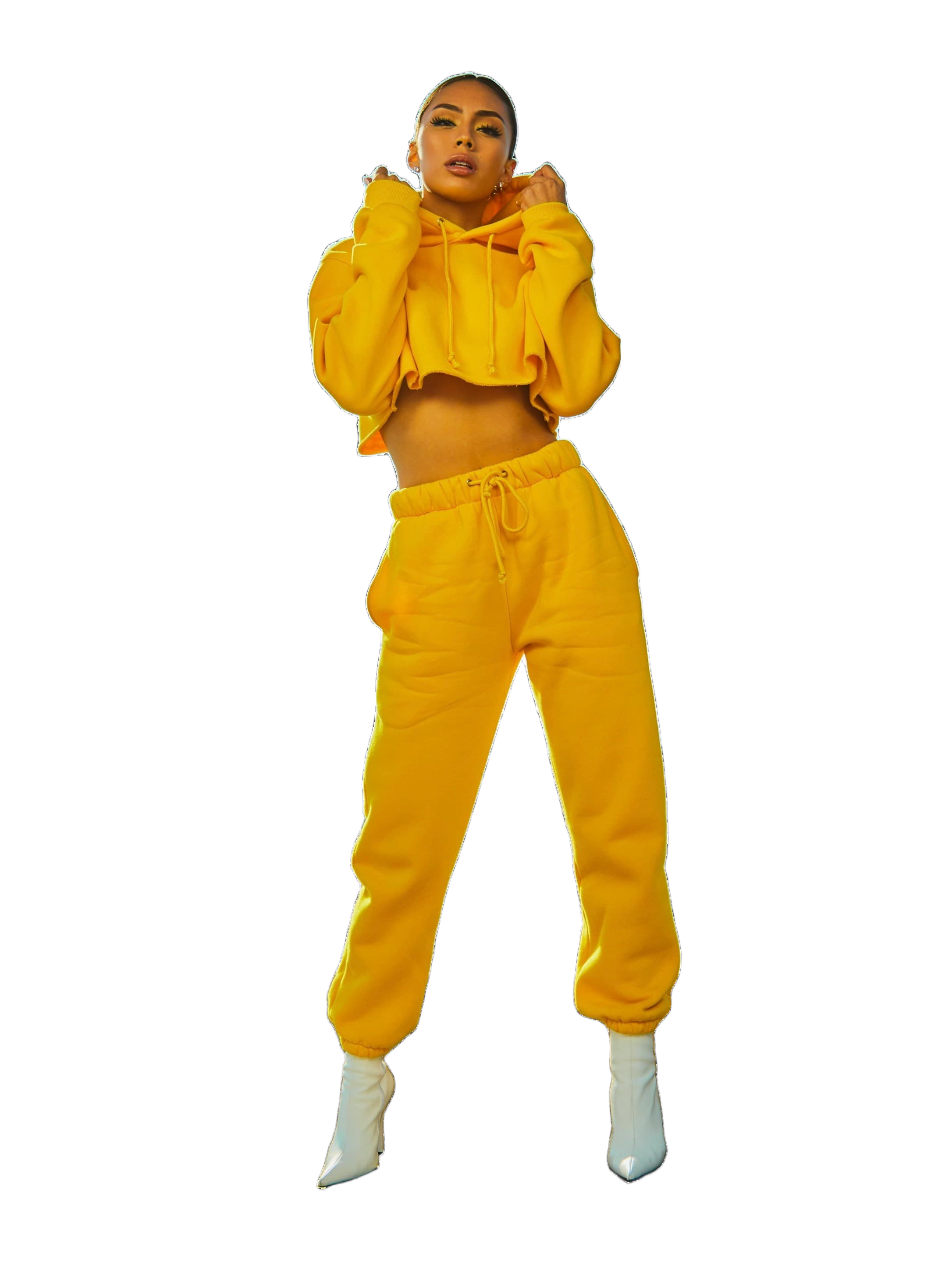
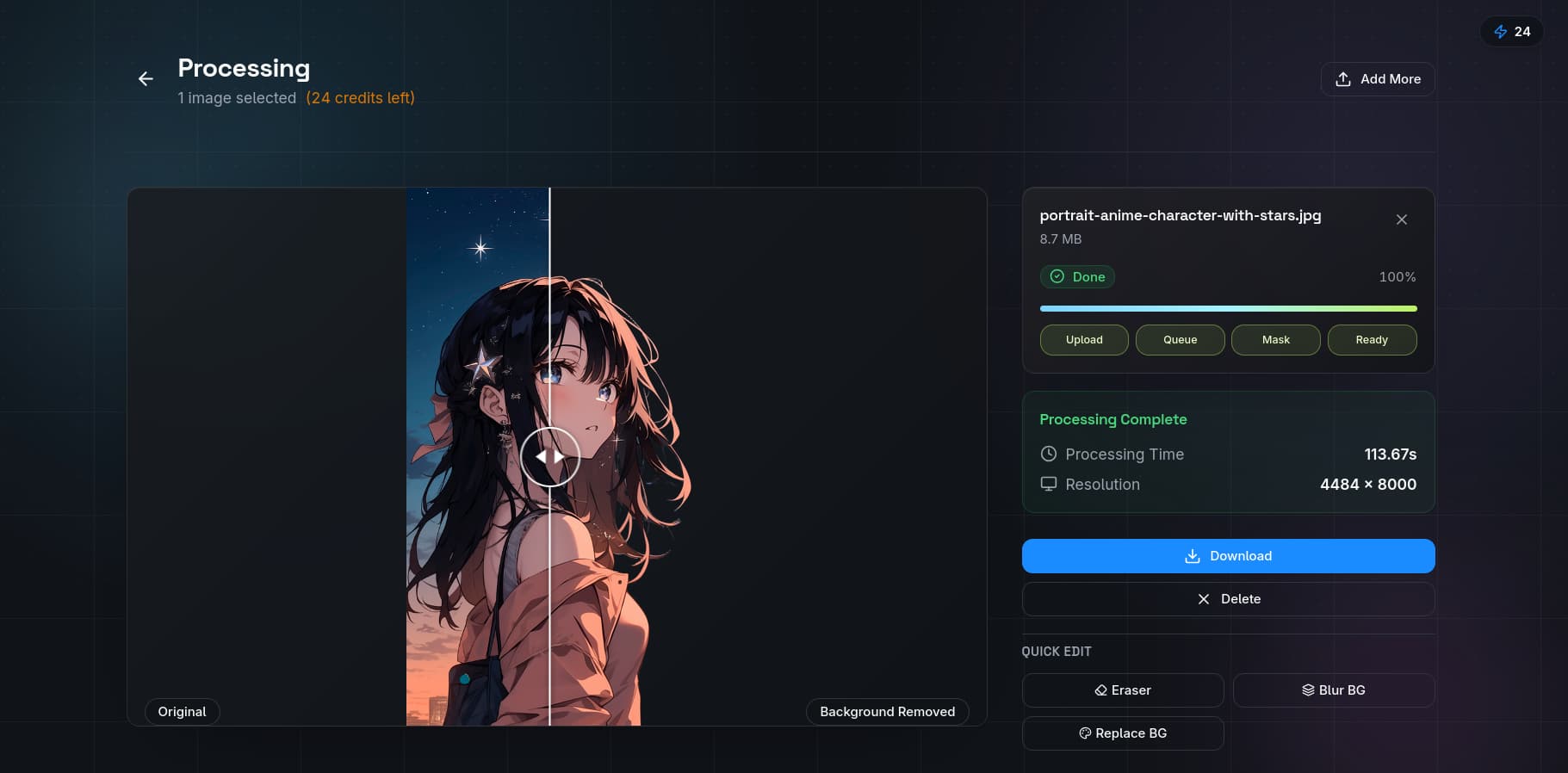
- Remove distracting backgrounds with QuickBG's background remover
- Apply same colour preset in adjust tool to every asset
- Place subjects into brand templates
- Export at platform-specific dimensions using resize tool
- Convert to WebP or JPEG using converter tool
Tools: Sharpness tool, All tools, About page