The Complete Guide to Cropping: Rule of Thirds, Aspect Ratios, and Framing
Master cropping techniques from rule of thirds to aspect ratio selection for any platform.

Why Cropping Matters
Cropping is one of the most powerful editing tools because it changes what the viewer sees — and what they do not see. A good crop removes distractions, improves composition, and fits your image to the required format. A bad crop cuts off important elements or creates awkward negative space.
Unlike resizing, which scales the entire image, cropping removes pixels from the edges. This means you lose some of the image, so choosing what to keep is a creative decision.
The Rule of Thirds
The rule of thirds is the most famous composition guideline in photography. Imagine dividing your image into a 3x3 grid with two horizontal and two vertical lines. The theory states that placing key elements along these lines or at their intersections creates a more engaging composition than centering everything.
How to apply it: When cropping, use the grid overlay available in QuickBG's crop tool. Position the subject's eyes (for portraits) or the main focal point (for landscapes) at one of the four intersection points.
When to Break the Rule
The rule of thirds is a guideline, not a law. Center composition works well for:
- Product photography where symmetry emphasizes the product
- Minimalist images where negative space is part of the design
- Square formats for social media profile images
Aspect Ratios and Their Uses
Different platforms and print sizes require different aspect ratios:
| Aspect Ratio | Dimensions | Common Use |
|---|---|---|
| 1:1 | 1080 x 1080 | Instagram square, Amazon main images |
| 4:3 | 1200 x 900 | Standard digital camera, iPad |
| 3:2 | 1800 x 1200 | 35mm film, DSLR native |
| 16:9 | 1920 x 1080 | YouTube thumbnails, widescreen |
| 9:16 | 1080 x 1920 | Instagram Stories, TikTok, mobile |
| 4:5 | 1080 x 1350 | Instagram portrait feed posts |
| 2:3 | 1200 x 1800 | Print: 4x6 inch photo |
Comparison: Cropping Methods
| Method | Description | Best For | Drawback |
|---|---|---|---|
| Free crop | Unconstrained, any dimensions | Creative projects | May produce non-standard sizes |
| Fixed aspect ratio | Locked to specific ratio | Platform-specific output | May cut more than desired |
| Fixed dimensions | Locked to exact pixel size | Strict requirements (Amazon) | Cannot adjust freely |
| Smart crop | AI-detected subject centering | Batch processing, thumbnails | Less creative control |
Framing Techniques
Beyond the rule of thirds, several framing techniques improve your crops:
- Leading lines — Crop to emphasize natural lines that guide the eye to the subject
- Negative space — Leave empty area around the subject for a minimalist feel or text overlay
- Headroom — Leave appropriate space above the subject's head. Too much makes the subject look small; too little feels cramped
- Noseroom — In portraits, leave space in the direction the subject is looking
Step-by-Step Guide to Cropping with QuickBG
- Upload your image to the crop tool.
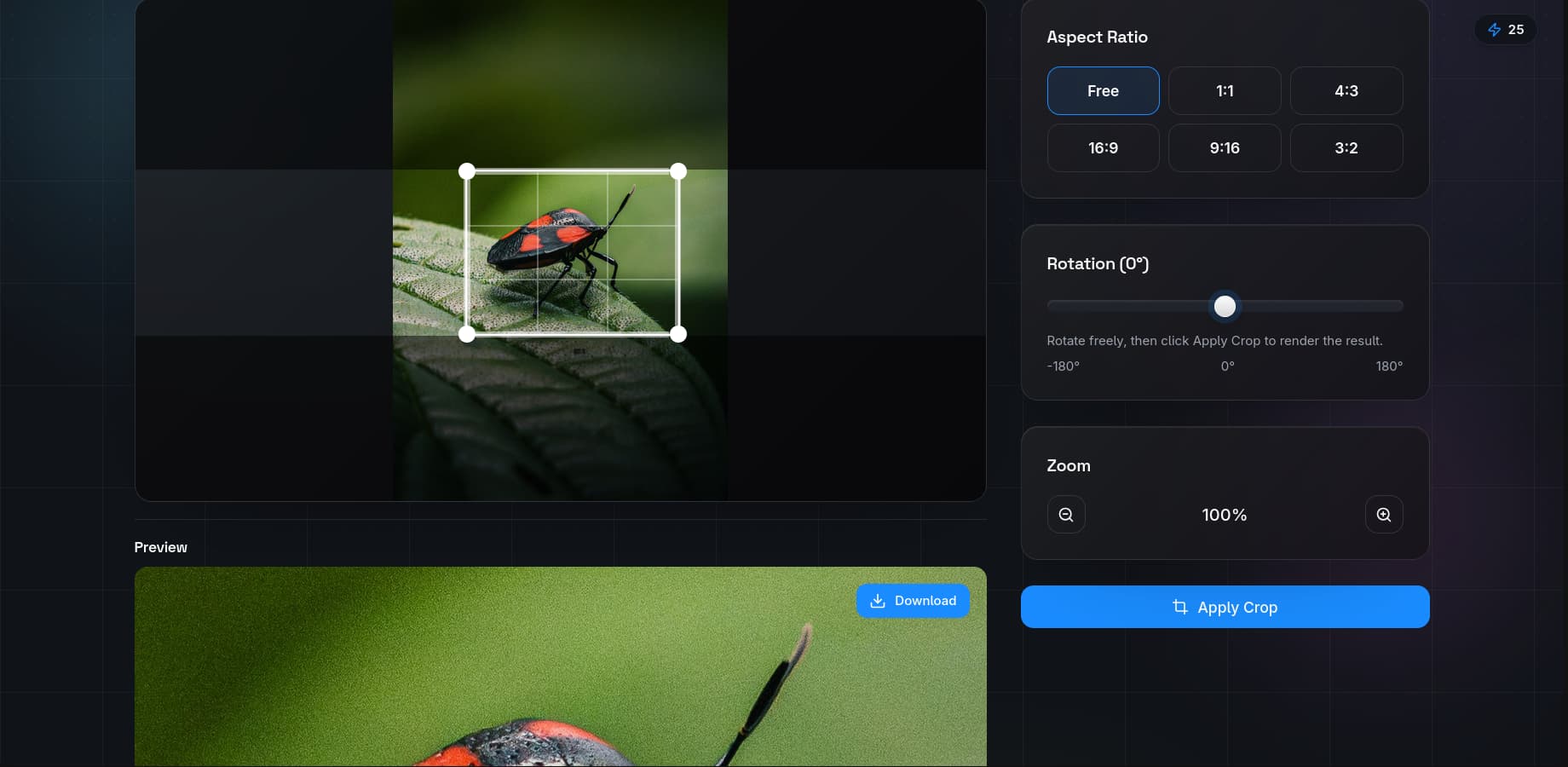
- Choose your aspect ratio from the preset menu or select Free for custom dimensions.
- Drag the crop handles to frame your subject. Use the grid overlay to align with the rule of thirds.
- Adjust the position until key elements sit on the grid intersections.
- Click Apply to finalize the crop. The image is now ready for resizing or further editing.
Batch Cropping
For e-commerce sellers and content creators who need consistent crops across many images, our batch crop feature applies the same dimensions and position to every file. This is especially useful for creating uniform product listings on Amazon or Etsy.
Pro Tips for Better Crops
- Crop in-camera when possible. The more you can frame correctly during shooting, the less you lose to cropping later.
- Do not crop too tightly. Leave some breathing room around the subject. You can always crop more later, but you cannot uncrop.
- Consider the final display size. A crop that looks good at 2000 px wide may look too tight at 200 px thumbnail.
- Use the same aspect ratio across a set. Inconsistent aspect ratios in a product catalog or social media feed look unprofessional.
For more composition tips, visit our FAQ page or explore all image editing tools.